
Adding your picture or avatar to your profile is a great way to deepen the “community” at Community Loaves. It is a great way for our hub leaders and hub members to match a face with a name as we do this great work together. It is quick and easy!
Step 1: Log in to your Community Loaves profile.
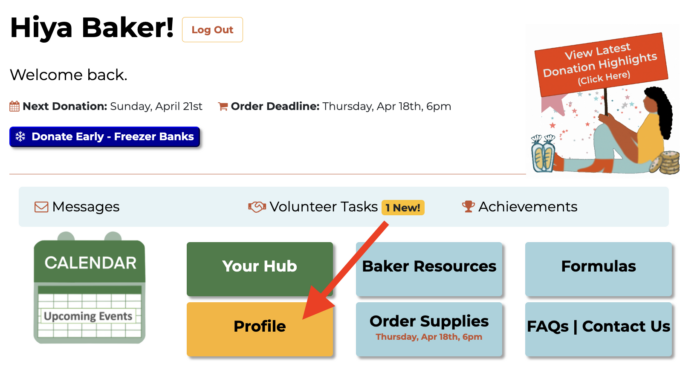
Step 2: Select the yellow Profile button
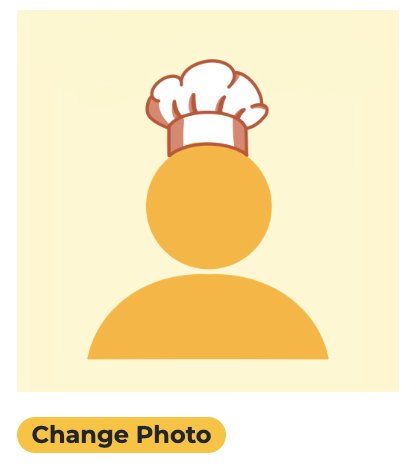
Step 3: Click on Change Photo
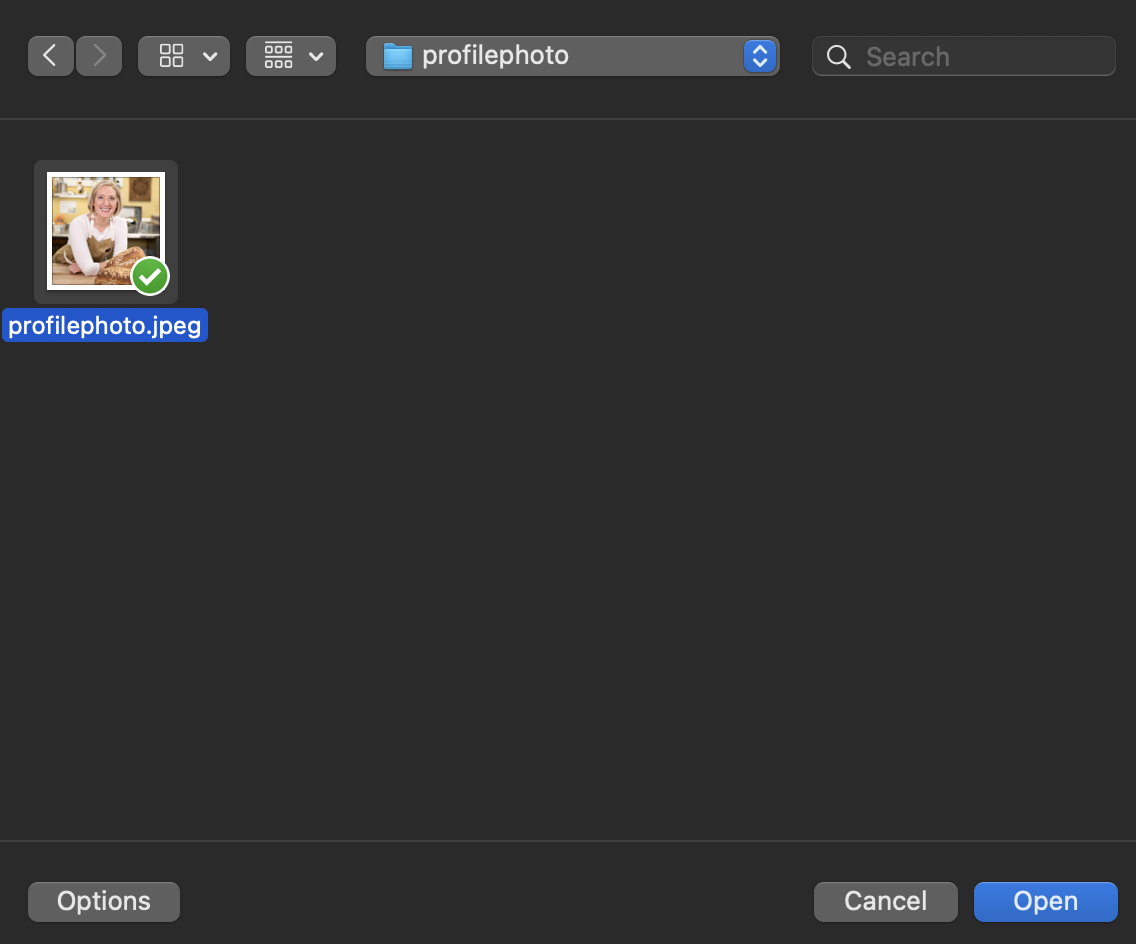
Step 4: Click the Choose File button to upload an image you have on your computer.

Step 5: Select an image (must be .jpg or .png) from your computer and select open. Select an image type .jpg or .png from your computer and select “Open”
Step 6: You will be able to see a preview of the image. Click “Update Profile” to save your new profile image. Then you can click “Back” to see your new profile photo in use on your baker dashboard.
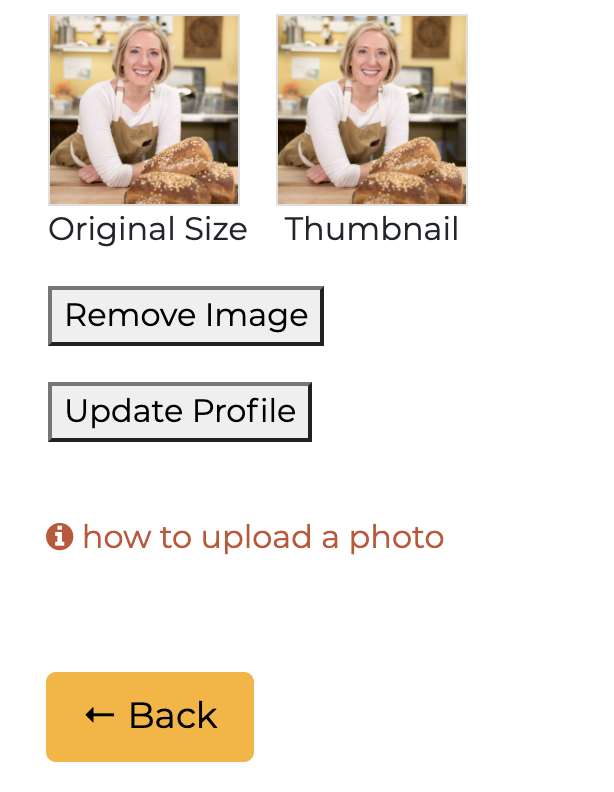
Step 7: If you are updating your profile instead of adding a photo for the first time, you will see your existing picture and the option to remove it. Remove the photo and then choose a new file to upload.